
Integrating Salesforce with external applications is a fundamental task for modern developers and architects. Whether you are building a custom middleware solution, connecting a mobile app, or setting up a CI/CD pipeline, you will inevitably need your Salesforce Client ID and Client Secret.
In Salesforce terminology, these are known as the Consumer Key and Consumer Secret. While Salesforce displays these credentials immediately after you create a new Connected App, finding them again later can be surprisingly counterintuitive. If you find yourself clicking through the Setup menu and coming up empty-handed, you are not alone.
In this guide, you will learn the exact steps to locate these credentials for any existing Connected App, understand why they might be hidden, and learn the best practices for managing your OAuth security.
Understanding the App Manager vs. Connected Apps Menu
One of the most common points of confusion for Salesforce administrators is the difference between the App Manager and the Manage Connected Apps screen.
If you navigate to Setup > Apps > Connected Apps > Manage Connected Apps, you will see a list of apps, but clicking into them only allows you to manage policies, such as IP relaxation and session timeouts. You will not find your Client ID or Client Secret here.
To access the actual API credentials, you must use the App Manager. This is the centralized hub for managing the metadata and definitions of your applications.
Step-by-Step: Locating Your Client ID and Client Secret
Follow these steps to retrieve your credentials in the Lightning Experience interface:
- Navigate to Setup: Click the gear icon in the top right corner and select Setup.
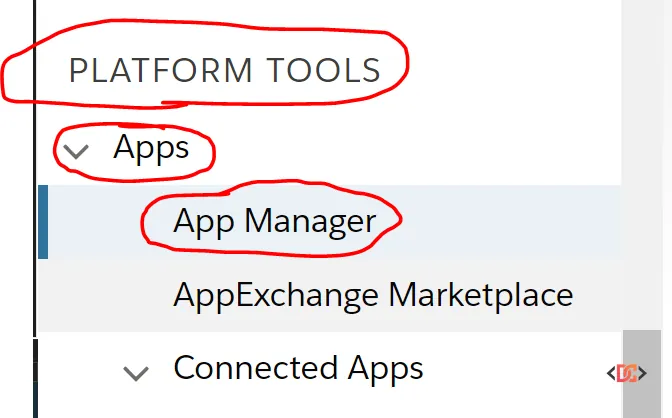
- Open the App Manager: In the Quick Find box on the left, type "App Manager" and select it under the Apps category.
- Locate Your App: Scroll through the list to find your specific Connected App.
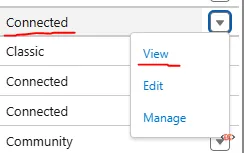
- Select View: Do not click the name of the app. Instead, click the small down arrow (dropdown) at the far right of the row and select View.
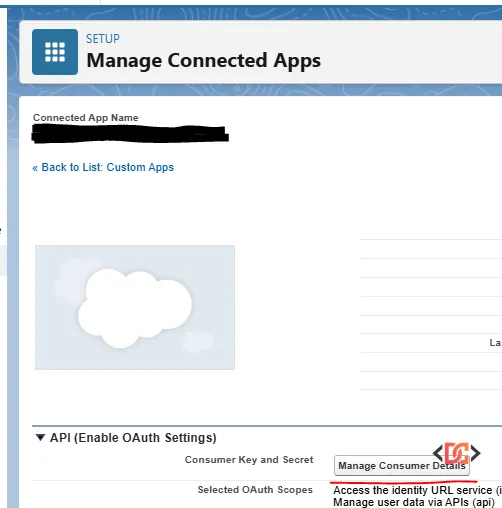
- Manage Consumer Details: Once the App definition page loads, look for the section titled API (Enable OAuth Settings). You will see a button labeled Manage Consumer Details.
- Verify Identity: Because the Client Secret is highly sensitive, Salesforce will likely prompt you to verify your identity via email or SMS (Identity Confirmation) or through a multi-factor authentication (MFA) challenge.
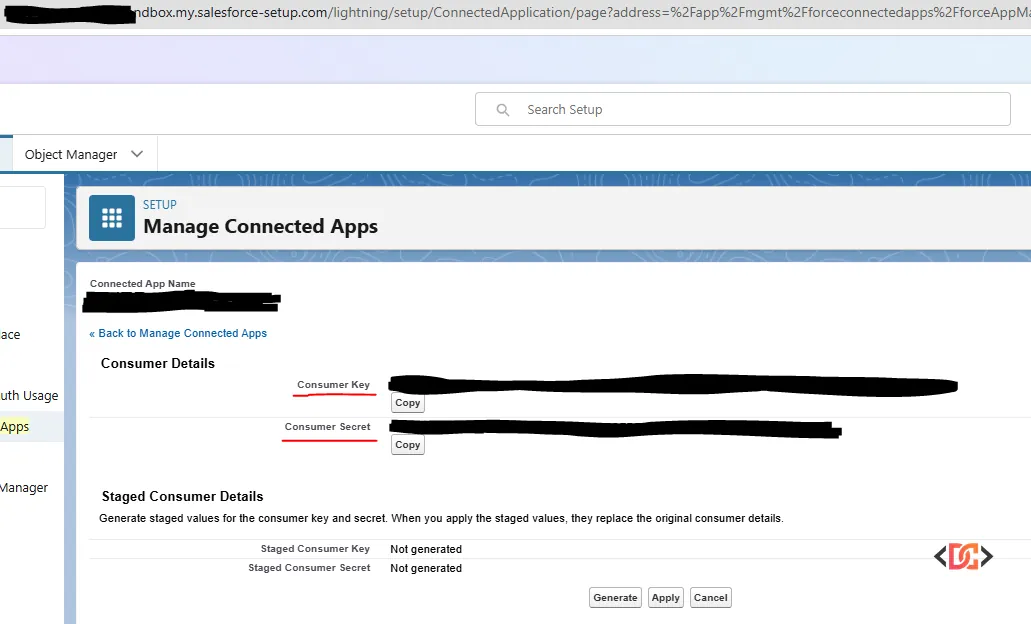
- Copy Your Credentials: After verification, a new screen will display your Consumer Key (Client ID) and Consumer Secret (Client Secret).
Why Can’t I See the Client Secret?
If you have followed the steps above and still cannot see the credentials, there are a few common reasons:
1. Insufficient Permissions
To view the Consumer Key and Secret, your user profile must have the "Customize Application" permission. If you are an administrator but still cannot see the "Manage Consumer Details" button, check if your profile or a permission set has restricted access to App management.
2. The App is Managed
If the Connected App was installed as part of a Managed Package (from the AppExchange), you may not be able to see the Client Secret. In these cases, the package provider typically handles the authentication flow, or the secret is intended to remain hidden to protect the integration logic.
3. OAuth is Not Enabled
Ensure that the "Enable OAuth Settings" checkbox was checked when the app was created. If this wasn't enabled, the app won't have a Client ID or Secret because it isn't configured for OAuth flows.
Best Practices for Handling OAuth Credentials
Your Client Secret is essentially a password for your entire integration. If it is compromised, an attacker could potentially impersonate your application and access your Salesforce data.
- Never Hardcode Credentials: Avoid placing your Client Secret in plain text within your source code. Use environment variables or a secure Key Vault (like AWS Secrets Manager or Azure Key Vault).
- Rotate Secrets Regularly: If a developer leaves your team or you suspect a leak, navigate to the same "Manage Consumer Details" page and use the Rotate Consumer Secret option.
- Restrict Access: Use the "Manage Connected Apps" section to restrict which users can use the app and from which IP addresses they can connect.
Frequently Asked Questions
Is the Consumer Key the same as the Client ID?
Yes. In the OAuth 2.0 standard, the term "Client ID" is used. Salesforce uses the term "Consumer Key" to refer to the exact same value.
Can I change my Client ID?
No, the Consumer Key (Client ID) is generated by Salesforce when the app is created and cannot be manually edited. If you require a specific ID, you would need to create a new Connected App, though this is rarely necessary.
What should I do if my Client Secret is leaked?
Immediately go to the App Manager, view the app, and click "Manage Consumer Details." There is an option to generate a new secret. Note that once you rotate the secret, any existing integrations using the old secret will fail until they are updated.
Wrapping Up
Finding your Salesforce Client ID and Client Secret is a straightforward process once you know to look in the App Manager rather than the general Connected Apps list. By navigating to the View menu and selecting Manage Consumer Details, you can securely access the credentials needed for your OAuth integrations.
Always remember to treat your Consumer Secret with the same level of security as an admin password, and ensure your integration users have the minimum permissions necessary to perform their tasks.