Moving a WordPress site from a local development environment to a live production server is a milestone every developer faces. While the process might seem straightforward—copying files and moving a database—the reality is often more complex. WordPress stores absolute URLs and serialized data in the database, meaning a simple copy-paste can lead to broken layouts, missing images, and dysfunctional plugins.
In this guide, we will explore the most efficient workflows for transitioning your WordPress install from development to production. Whether you prefer a hands-on manual approach, command-line efficiency, or the convenience of specialized plugins, you will find a strategy that fits your workflow.
1. The Manual Database and File Migration
The traditional method involves exporting your local database and importing it into your production environment. However, since the domain name usually changes (e.g., from website.local to www.website.com), you must update the references in the database.
While some developers attempt a find-and-replace in a text editor on the .sql file, this can corrupt serialized data. Serialized strings in WordPress include a character count; if you replace a 12-character URL with a 15-character URL without updating the count, the data becomes unreadable to PHP.
For a safer manual approach, you can run SQL queries directly via phpMyAdmin or your MySQL terminal once the database is imported:
UPDATE wp_options SET option_value = replace(option_value, 'http://dev.local', 'http://www.production.com') WHERE option_name = 'home' OR option_name = 'siteurl';
UPDATE wp_posts SET post_content = replace(post_content, 'http://dev.local', 'http://www.production.com');
UPDATE wp_postmeta SET meta_value = replace(meta_value, 'http://dev.local', 'http://www.production.com');
UPDATE wp_usermeta SET meta_value = replace(meta_value, 'http://dev.local', 'http://www.production.com');
2. Leveraging WP-CLI for Rapid Deployment
If you have SSH access to your server, WP-CLI is the fastest and most reliable way to handle migrations. The search-replace command is specifically designed to handle serialized data correctly, ensuring your configuration stays intact.
After migrating your files and database, navigate to your root directory and run:
wp search-replace 'http://dev.local' 'http://www.production.com'
This single command scans your entire database, identifies serialized strings, calculates the new character lengths, and updates every instance of the URL. It is the gold standard for professional WordPress developers.
3. Environment-Specific Configurations in wp-config.php
You can make your site more portable by defining your site URLs dynamically in the wp-config.php file. This prevents you from having to change the siteurl and home values in the database every time you move between environments.
Add these lines to your configuration file:
define( 'WP_HOME', 'http://www.production.com' );
define( 'WP_SITEURL', 'http://www.production.com' );
For developers managing multiple environments (Dev, Staging, Live), you can even implement a "fork" in your wp-config.php to detect the environment automatically:
$is_local = in_array($_SERVER['REMOTE_ADDR'], array('127.0.0.1', '::1')) || strpos($_SERVER['HTTP_HOST'], '.local') !== false;

if ($is_local) {
    define('DB_NAME', 'local_db');
    define('DB_USER', 'root');
    define('DB_PASSWORD', 'root');
    define('DB_HOST', 'localhost');
    define('WP_DEBUG', true);
} else {
    define('DB_NAME', 'prod_db');
    define('DB_USER', 'prod_user');
    define('DB_PASSWORD', 'secure_password');
    define('DB_HOST', 'localhost');
    define('WP_DEBUG', false);
}
4. Advanced Automation with Custom Webhost Registration
For complex setups, you can create a more robust registration system within your plugin directory to handle multiple hosts. This approach allows you to define metadata for each environment, such as specific API keys or directory paths, and switch between them seamlessly.
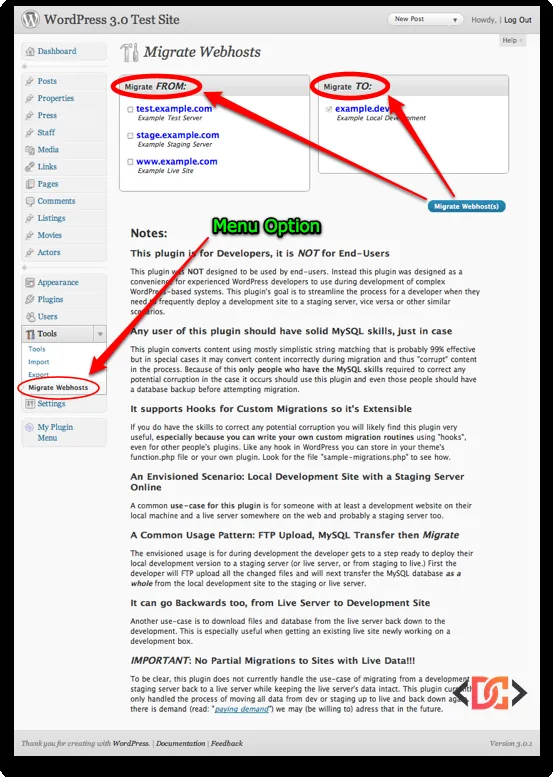
By using a custom migration script, you can hook into the migration process to perform specific tasks, such as clearing caches or updating third-party plugin settings that are environment-dependent. This is particularly useful when dealing with Google Maps API keys or payment gateway credentials that must differ between development and production.
5. Top Migration Plugins for a GUI Experience
If you prefer a graphical interface, several plugins have perfected the art of WordPress migration. These tools package your database, plugins, themes, and media into a single archive for easy transport.
- WP Migrate DB Pro: Ideal for developers who want to "push" or "pull" databases between sites without leaving the dashboard. It handles serialized data perfectly.
- All-in-One WP Migration: Known for its simplicity. You export a file from the dev site and import it on the production site. It bypasses many host-imposed upload limits.
- Duplicator: Excellent for creating a "package" of your site. It provides an
installer.phpfile that automates the extraction and database setup on the new server. - BackupBuddy: A premium option that offers full-site backups and a dedicated tool for moving sites to new domains or hosts.
6. Managed Hosting and Staging Environments
Many modern WordPress hosts (like WPEngine, SiteGround, or Kinsta) offer built-in "One-Click Staging." This allows you to develop in a safe environment and push your changes to production with a single button. This is often the safest route for live sites with high traffic, as it minimizes downtime and reduces the risk of human error during manual transfers.
Frequently Asked Questions
Why do my widgets disappear after a migration?
This usually happens because widget data is stored in a serialized format. If you used a simple find-and-replace that didn't account for string lengths, the serialization breaks, and WordPress reverts the widgets to their default state. Always use WP-CLI or a migration plugin to avoid this.
Can I just use the WordPress Export/Import tool?
While the built-in XML export/import tool is good for moving posts and pages, it does not move your plugin settings, theme configurations, or site metadata. For a full site migration, it is generally insufficient.
How do I handle large media libraries during migration?
If your wp-content/uploads folder is several gigabytes, avoid using plugins to move it. Instead, use SFTP or rsync to transfer the files directly between servers, and use a migration plugin or WP-CLI strictly for the database.
Wrapping Up
There is no "one size fits all" solution for moving WordPress from development to production. For quick fixes, manual SQL updates or configuration constants work well. For professional client work, WP-CLI or premium plugins like WP Migrate DB Pro offer the reliability needed to ensure no data is lost in translation.
By choosing a workflow that respects serialized data and automates the tedious parts of the process, you can deploy with confidence and focus on building great sites rather than troubleshooting broken links.