Encountering the duplicate value found:
Whether you are performing a data load or deploying metadata via the Salesforce CLI, this guide will provide a systematic framework to identify the root cause and fix the issue for good.
Understanding the Context: DML vs. Metadata
The first step in your investigation is to determine where the error originated. The troubleshooting path differs significantly depending on whether you are working with data or metadata.
Scenario A: DML Errors
If you receive this error during an insert or update operation in Apex or via a data loading tool, you are likely dealing with a data integrity issue. This typically happens when a field has a unique constraint and your code or data load is attempting to insert a value that already exists in the database.
In DML scenarios, you may sometimes see at least one ID or value populated. If both remain <unknown>, check the following:
- Unique Fields: Audit all fields on the target object that have the "Unique" attribute checked.
- Workflow Rules & Triggers: Ensure a background process isn't inadvertently updating a unique field to a value that already exists on another record.
- Upsert Keys: If you are performing an upsert, verify that your External ID is not duplicated in your CSV file or collection.
Scenario B: Metadata Deployment Errors
This is the more common—and more painful—scenario. You are trying to deploy a package, and the Metadata API returns the dreaded <unknown> error. This usually indicates that the metadata you are pushing conflicts with existing configurations in the target org in a way that Salesforce cannot gracefully resolve.
A Systematic Approach to Deployment Errors
When the error message fails you, the metadata file structure becomes your best friend. Here is how to isolate the problem.
Step 1: Decode the Error Coordinates
Take a close look at the error string provided by your deployment tool:
Error: objects/Opportunity.object(2098,13):duplicate value found: <unknown> duplicates value on record with id: <unknown>
The key information is (2098,13). This refers to the line number and column number within the metadata file. Open the specific file (in this case, Opportunity.object) and navigate to that line.
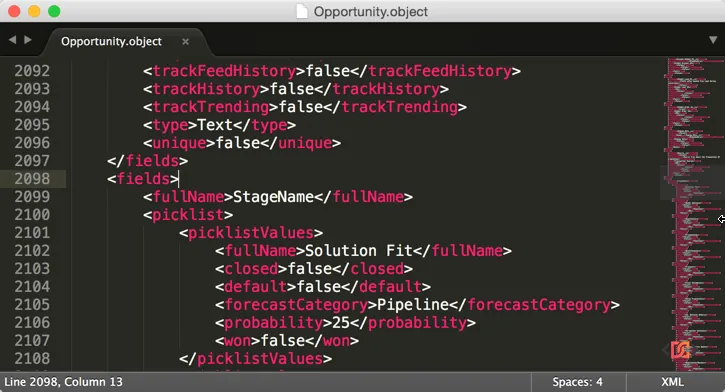
In the example above, the error points to the StageName picklist field. This tells you exactly where to focus your investigation.
Step 2: The Isolation Strategy
If the coordinates are unclear or the file is too large to parse, use the "Divide and Conquer" method: 1. Create a new deployment package containing only the component mentioned in the error. 2. Attempt to deploy that single component. 3. If it fails, you have confirmed the culprit. If it succeeds, the error is likely caused by a dependency or a conflict with another component in the original package.
Common Root Causes and Proven Fixes
Through community experience and platform updates, several specific culprits have been identified for this error.
1. Inactive Picklist Values
If the error points to a picklist field, check the target org for inactive picklist values. If you are trying to deploy a new picklist value that has the same API name as an existing inactive value in the target org, the deployment will fail with the <unknown> error.
The Fix: Manually delete the inactive picklist value in the target org or reactivate it before running your deployment again.
2. Duplicate Quick Actions and Page Layouts
Page layouts are notorious for this error. Sometimes, a layout XML file may contain duplicate entries for Quick Actions, related list buttons, or fields. This can happen if multiple developers are merging changes into the same layout file.
The Fix: Open the .layout-meta.xml file and search for duplicate <platformActionListItems> or <relatedListActions>. Manually remove the duplicates from the XML and redeploy.
3. Lightning Web Component (LWC) Glitches
In Salesforce DX environments, LWC deployments can sometimes trigger this error without a clear reason. Developers have found two reliable workarounds:
- The "Fake Change" Method: Make a non-functional change to the .html file (like adding and then removing a blank <div>). This often forces the compiler to reset and allows the deployment to succeed.
- Deploy from HTML: Instead of deploying the entire bundle or the JS file, try right-clicking the .html file in your IDE and selecting "SFDX: Deploy Source to Org."
4. Report Folder Path Conflicts
If you move a report from a Public Folder to a specific folder and pull the source, your local metadata might become "stuffed up." The Metadata API may see the report in two places simultaneously.
The Fix: Check the Deployment Status page in the Salesforce Setup UI. Often, the web interface provides the actual API Name of the duplicate record, even when the CLI shows <unknown>.

5. Environment Configuration Mismatches
If you are moving metadata between different org types (e.g., from a Developer Edition to a Partner Developer Edition), certain features like Chatter might be disabled by default in the target. If your profiles or layouts reference Chatter-related components that don't exist in the target, you may receive the duplicate value error.
Frequently Asked Questions
Why does Salesforce show '' instead of the actual ID?
This usually happens when the error occurs during the validation phase of the Metadata API. Because the records aren't fully committed to the database yet, the system cannot always map the internal conflict to a specific record ID in the way it does with standard DML.
Can Field History Tracking cause this?
Yes. There is a known issue where deploying an object with Field History Tracking enabled can cause conflicts if the target org has a different tracking configuration. If you are stuck, try disabling history tracking in the source metadata, deploying, and then re-enabling it manually.
How do I handle Business Process errors?
In 2nd Generation Managed Packaging (2GP), Business Processes (like Lead Processes or Sales Processes) can conflict with existing Record Types. If your deployment fails on a Business Process, ensure it isn't already defined in the target org under a different package or as unmanaged metadata.
Wrapping Up
While the "duplicate value found:
By following these steps, you can turn a multi-hour debugging nightmare into a quick fix and get back to building on the platform.