Managing multiple Salesforce environments is a daily reality for modern developers. Whether you are juggling a dozen scratch orgs, several sandboxes, and a production environment, keeping track of which username belongs to which project can become overwhelming. This is where aliases come in. An alias is a human-readable shortcut for a long, complex Salesforce username.
However, as projects evolve, you may find that the alias you initially chose no longer makes sense. Perhaps you made a typo during the initial authorization, or a project name has changed. In this guide, you will learn exactly how to change an org's alias using the Salesforce CLI, covering both the modern sf commands and the legacy sfdx syntax.
Why Org Aliases Matter in Your Workflow
Before we dive into the commands, it is important to understand why aliases are critical for your productivity. When you run a command like sf deploy metadata, the CLI needs to know which org to target. Typing out [email protected] every time is prone to error and time-consuming.
By setting an alias like dev-feature-alpha, you create a stable reference point. If you ever need to replace that scratch org, you can simply point the same alias to a new username, and your existing scripts and mental shortcuts remain intact.
Method 1: The Modern Way Using the sf CLI
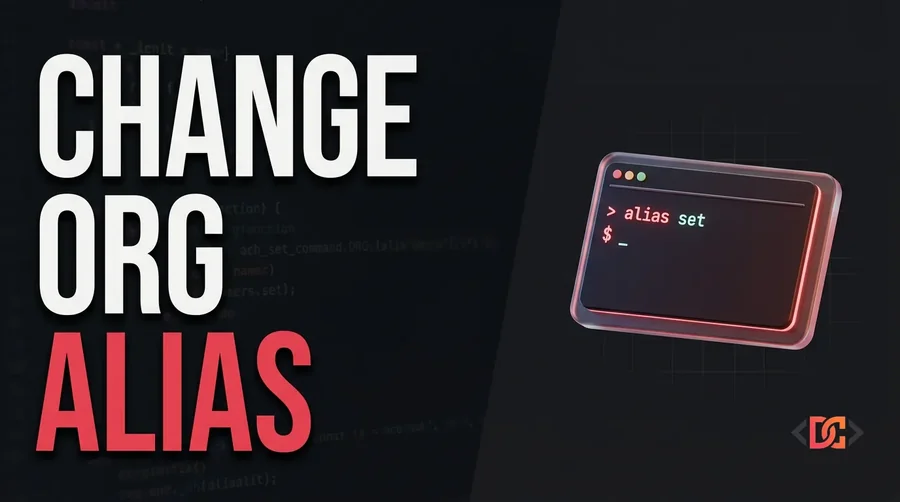
Salesforce has transitioned to the unified sf (v2) CLI. This is currently the recommended approach for all developers. If you have the latest version of the Salesforce CLI installed, changing an alias is straightforward using the alias set command.
To change or set an alias for a specific username, use the following syntax:
sf alias set [email protected]
One of the benefits of the modern CLI is its flexibility. You are no longer restricted to one alias at a time, and the syntax is much more forgiving. Here are several ways you can use this command to manage your environment efficiently.
Setting Multiple Aliases at Once
If you are setting up a new workstation or restructuring several projects, you can map multiple aliases in a single line:
sf alias set [email protected] [email protected]
Handling Spaces in Aliases
While it is generally recommended to use hyphens or underscores, the CLI does support spaces if you wrap the alias in quotes:
sf alias set my-alias='alias with spaces'
Simplified Syntax
In the latest versions of the sf CLI, you can even omit the equal sign for a single alias assignment:
sf alias set my-scratch-org [email protected]
Method 2: Using Legacy sfdx Commands
If your CI/CD pipeline or local environment is still utilizing the legacy sfdx namespace, the commands differ slightly. While sf is the future, many legacy systems still rely on the force namespace.
To set an alias in the legacy CLI, use:
sfdx force:alias:set [email protected]
Alternatively, if you are using a version of sfdx where the alias commands were moved out of the force namespace but before the full transition to sf, you might use:
sfdx alias:set [email protected]
After running these commands, you can verify the change by listing your orgs:
sfdx force:org:list
You should see the updated alias reflected in the output table:
 ALIAS        USERNAME                       ORG ID              EXPIRATION DATE
  ───────────  ─────────────────────────────  ──────────────────  ───────────────
  my-new-alias  [email protected]  00D21000000HTDoXXO  2020-10-21
Method 3: Removing and Cleaning Aliases
Sometimes, changing an alias isn't enough; you may need to remove old, stale aliases that are cluttering your workspace. Over time, expired scratch orgs can leave behind 'ghost' aliases that make your org list difficult to read.
Unsetting an Alias
To completely remove an alias from a username without deleting the org itself, use the unset command:
sf alias unset my-old-alias
Be careful not to set an alias to an empty value (e.g., sf alias set my-alias=). In some versions of the CLI, this marks the value as undefined and can cause unexpected errors when running other commands. Always use unset to remove a reference.
Bulk Cleaning Your Org List
If you have a long list of expired scratch orgs or aliases pointing to orgs that no longer exist, you can perform a bulk cleanup:
sf org list --clean --no-prompt
This command attempts to connect to the orgs in your list. If an org is expired or the alias is orphaned, the CLI will remove it from your local configuration, leaving you with a pristine development environment.
Advanced: Under the Hood of Salesforce Aliases
For those who like to know how their tools work, Salesforce CLI aliases are stored locally in a simple JSON file. On most systems (macOS, Linux, and Windows), you can find this file at:
~/.sfdx/alias.json
If you are in a pinch or need to perform a bulk find-and-replace that the CLI doesn't easily support, you can edit this file directly with a text editor like VS Code or Vim. The structure is a simple key-value pair map:
{
  "defaultdevhubusername": "[email protected]",
  "my-prod-org": "[email protected]",
  "feature-branch-org": "[email protected]"
}
Note: While direct editing works, it is always safer to use the CLI commands to ensure the file's integrity and to trigger any internal listeners the CLI might have.
Automating Alias Replacements for DevOps
If you are managing a large-scale DevOps operation, you might need to programmatically swap aliases based on the current Git branch or environment state. Using a tool like jq (a lightweight command-line JSON processor), you can create powerful scripts to handle this.
Here is an example of a bash function that finds an org's username by its old alias and reassigns it to a new one:
dx-alias-replace-by-name() {
    echo "What is the OLD alias name?"
    read OLD_ALIAS
    echo "What is the NEW alias name?"
    read NEW_ALIAS

    # Get the username associated with the old alias
    ORIGINAL_USERNAME=$(sfdx force:org:list --json | jq --arg alias "$OLD_ALIAS" -r '.result.nonScratchOrgs[] | select(.alias == $alias) | .username')

    if [ -z "$ORIGINAL_USERNAME" ]; then
        echo "Alias not found."
    else
        sf alias set "$NEW_ALIAS"="$ORIGINAL_USERNAME"
        echo "Alias updated successfully."
    fi
}
Frequently Asked Questions
Can I have multiple aliases for the same username?
Yes. You can assign as many aliases as you like to a single username. This is helpful if you want a generic alias like current-project and a specific one like sprint-4-demo both pointing to the same environment.
Does changing an alias affect my login credentials?
No. An alias is merely a local pointer on your machine. Changing, renaming, or deleting an alias does not change the username, password, or security token of the Salesforce org itself. It only changes how you refer to that org in your local terminal.
Why isn't my new alias showing up in VS Code?
If you are using the Salesforce Extension Pack in VS Code, the UI might take a moment to refresh. You can usually force a refresh by clicking the 'Refresh' icon in the Salesforce Org Picker (located in the bottom status bar) or by restarting VS Code.
Wrapping Up
Mastering the Salesforce CLI is all about reducing friction in your development lifecycle. Knowing how to quickly rename and organize your org aliases allows you to switch contexts faster and reduces the cognitive load of remembering complex usernames.
Whether you use the modern sf alias set command or automate your workflow with bash scripts, keeping your alias list clean and descriptive is a hallmark of an efficient Salesforce developer. Regularly use sf org list --clean to keep your environment tidy, and don't be afraid to update your aliases as your project requirements evolve.