Being recognized as a Sitecore MVP (Most Valuable Professional) is one of the highest honors in the Sitecore community. It represents your dedication, expertise, and willingness to share knowledge with others. Once you've earned this title, your presence on the official Sitecore MVP Directory becomes your digital business card. It is often the first place potential employers, partners, and community members look when they want to connect with top-tier talent.
However, a common hurdle for many new and returning MVPs is keeping their profile information current—specifically their profile picture. A professional, up-to-date headshot is crucial for personal branding. In this guide, you will learn exactly how to update your photo on the Sitecore MVP Directory using the platform's integration with Gravatar.
Understanding the Sitecore MVP Directory Image System
The Sitecore MVP Directory does not host profile images directly on its own servers. Instead, it leverages a widely used service called Gravatar (Globally Recognized Avatar). This is a standard practice for many developer-centric platforms because it allows users to manage one central image that follows them across various technical forums, blogs, and community sites.
When the MVP Directory loads your profile, it looks at the email address associated with your MVP account, creates a unique hash of that email, and requests the corresponding image from Gravatar. If you haven't set up a Gravatar account or if the email addresses don't match, your profile may display a default placeholder image instead of your professional headshot.
Step 1: Setting Up Your Gravatar Account
To change or upload your photo, you must first ensure you have a Gravatar account that is linked to the correct email address. Follow these steps:
- Visit Gravatar: Go to Gravatar.com and sign in. If you don't have an account, you will need to create one using the same email address that you use for your Sitecore MVP account.
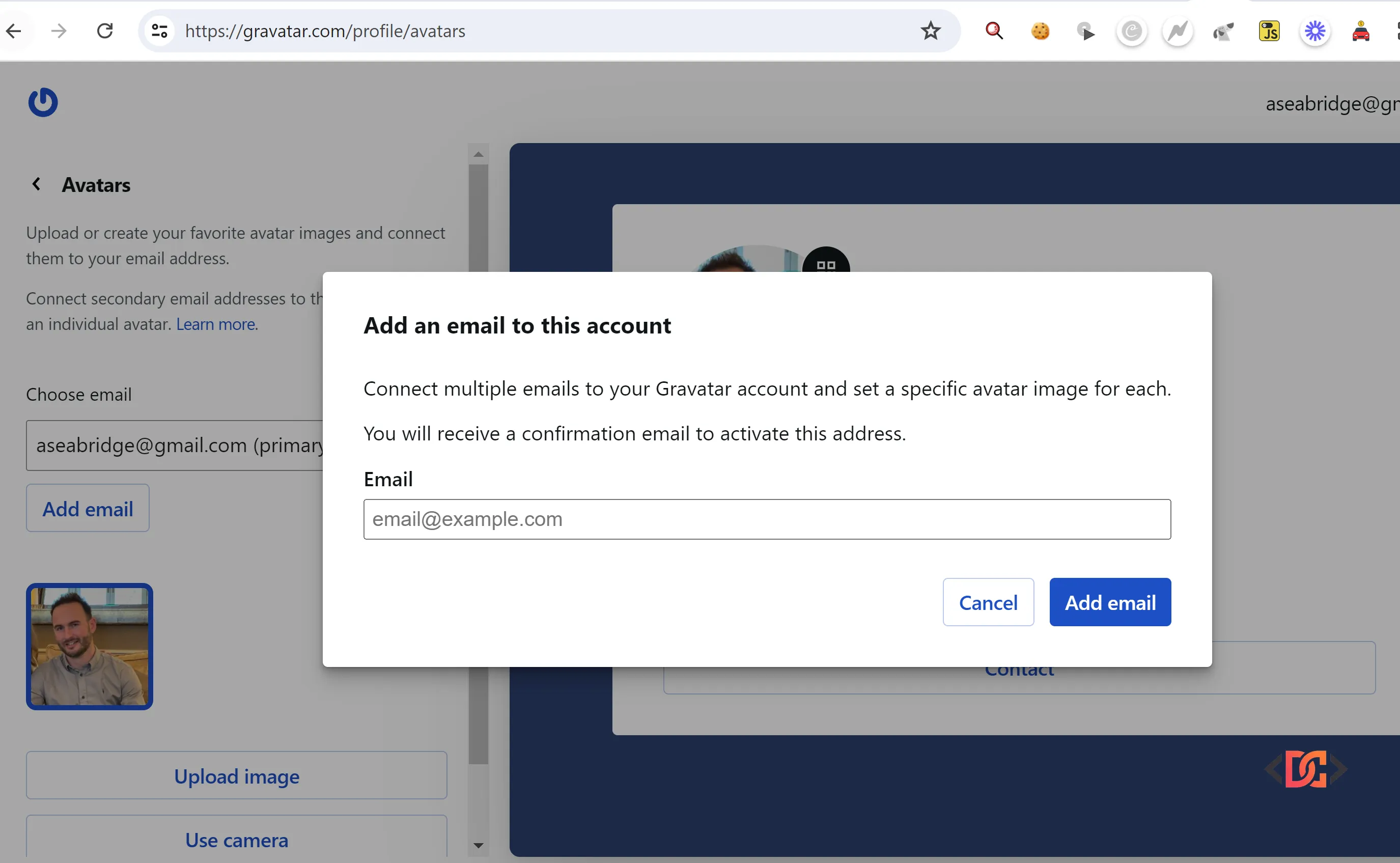
- Add Your Email: If your MVP account uses a different email than your primary Gravatar login, you can add multiple email addresses to a single Gravatar account. Navigate to the "Manage Gravatars" section and add the specific email registered with Sitecore.
- Upload Your Photo: Upload a high-resolution, professional headshot. Sitecore's directory usually displays these in a circular or square format, so ensure your face is centered.
- Assign the Image: Make sure the uploaded photo is explicitly assigned to the email address used for your Sitecore MVP profile.
Step 2: Configuring Your Sitecore MVP Profile Settings
Once your photo is live on Gravatar, you need to tell the Sitecore MVP portal to pull that data. Even if Gravatar is set up, your profile might be configured to use a different data source by default.
- Log in to the MVP Portal: Navigate to the official Sitecore MVP My Data page.
- Locate Profile Photo Source: Scroll down to the profile configuration section. You will find a field labeled "Profile Photo source".
- Select Gravatar: Ensure that "Gravatar" is selected from the dropdown menu.
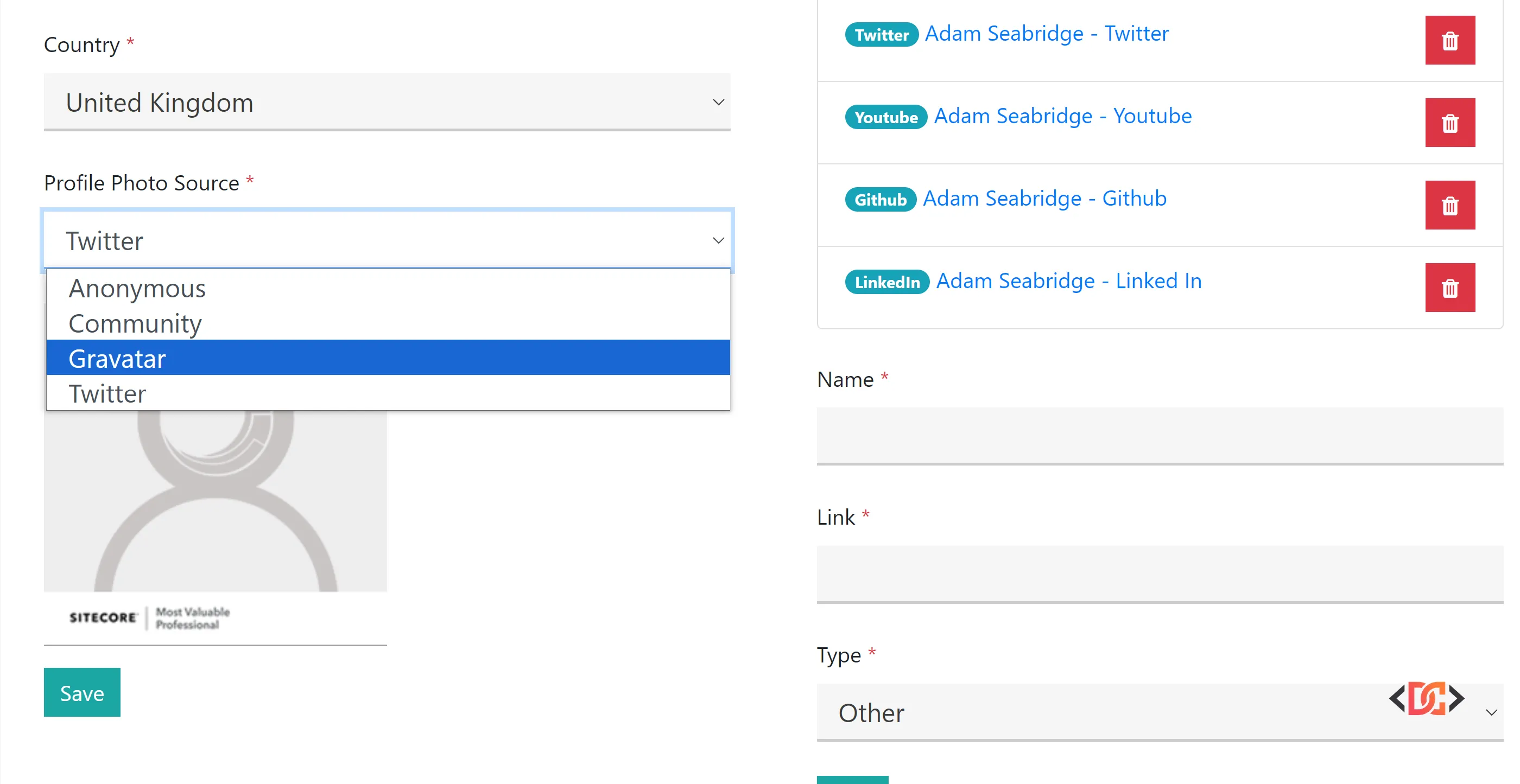
- Save Your Changes: Click the save button at the bottom of the page to commit the update.
Step 3: Troubleshooting Sync Issues
Sometimes, even after updating Gravatar and selecting the correct source in the MVP portal, your old photo (or no photo) might still appear. This is usually due to aggressive caching on the browser or server side. If your photo isn't updating, try these professional troubleshooting tips:
The "Toggle and Save" Trick
If your profile already had Gravatar selected but the image is stale, the portal might not have triggered a fresh sync. To force a refresh: 1. Change the "Profile Photo source" to a different option (like "LinkedIn" or "None"). 2. Save the profile. 3. Change it back to "Gravatar". 4. Save the profile again.
Verify Your Email Alignment
Double-check that the email address listed in your Gravatar account matches the one shown in your MVP Account exactly. Case sensitivity and typos are the most common reasons for a sync failure.
Contacting Support
If you find that your MVP account is linked to an old work email that you no longer have access to, or if you need to change your primary login email for the directory, you should contact the official Sitecore MVP Team directly. You can reach them at [email protected]. They can manually update your record to ensure your identity and achievements remain linked to your current professional email.
Why Your MVP Profile Image Matters
In the digital-first world of Sitecore development, your MVP status is a badge of authority. When you contribute to the Sitecore Slack, participate in User Groups, or speak at events like SUGCON or Symposium, people will look you up. A missing or outdated photo can make a profile feel abandoned.
By using Gravatar, you also ensure that your professional image stays consistent across other platforms like GitHub, Stack Overflow, and WordPress blogs. This consistency helps build your personal brand within the tight-knit Sitecore ecosystem.
Frequently Asked Questions
How long does it take for Gravatar changes to show up on the MVP Directory?
Usually, Gravatar updates are reflected within a few minutes to an hour. However, because the Sitecore MVP Directory may use its own caching layer, it can sometimes take up to 24 hours for the change to be visible to all users globally. Try clearing your browser cache or viewing the directory in an Incognito/Private window to verify the change.
Can I upload a photo directly to the Sitecore MVP website instead of Gravatar?
As of the current platform version (mid-2024), the primary supported method for profile photos is Gravatar. While the interface may occasionally show other source options like LinkedIn, Gravatar remains the most reliable and recommended method for ensuring your photo displays correctly across the directory.
Wrapping Up
Updating your Sitecore MVP photo is a straightforward process once you understand the relationship between the MVP portal and Gravatar. By keeping your email addresses aligned and ensuring the "Profile Photo source" is correctly set to Gravatar in your "My Data" settings, you can maintain a professional and recognizable presence in the community.
Remember to review your full profile at least once a year—including your bio and social media links—to ensure the Sitecore community has the most accurate information about your expertise and contributions.