As your Sitecore platform evolves, you will inevitably encounter a situation where your initial information architecture needs a refresh. Whether you are consolidating similar templates to improve the editor experience or refactoring code to better utilize Sitecore's Compatible Renderings functionality, you often need to perform a Sitecore change item template operation.
The challenge is that simply changing a template in the Content Editor usually results in data loss if the field names or IDs do not match perfectly between the source and target. In this guide, you will learn several proven methods to migrate content between templates while preserving every bit of existing data.
1. Using Sitecore PowerShell Extensions (Recommended)
Sitecore PowerShell Extensions (SPE) is the most robust and flexible tool for content refactoring. If you have SPE 4.5 or higher, the process is incredibly straightforward thanks to the -FieldsToCopy parameter.
The Modern SPE Approach (Version 4.5+)
This method allows you to map old field names to new field names dynamically. Here is how you can perform the migration:
$rootItem = Get-Item "master:/content/Home/MyProject";
$sourceTemplate = Get-Item "/sitecore/templates/Project/OldTemplate";
$targetTemplate = Get-Item "/sitecore/templates/Project/NewTemplate";

# Find all items using the old template and map fields to the new one
Get-ChildItem $rootItem.FullPath -recurse | Where-Object { $_.TemplateName -eq $sourceTemplate.Name } | ForEach-Object {
    Set-ItemTemplate -Item $_ -TemplateItem $targetTemplate `
        -FieldsToCopy @{ "Title2" = "Title1"; "SubText2" = "SubText1"; "Body2" = "Body1" }
}
The -FieldsToCopy parameter takes a hash table where the key is the source field name and the value is the target field name: @{ OldField = "NewField" }.
The Legacy SPE Approach (Version 4.4.1 or Lower)
If you are working on an older instance, you must manually store the field values in variables before changing the template to avoid data loss.
$rootItem = Get-Item "master:/content/Home/MyProject";
$sourceTemplate = Get-Item "/sitecore/templates/Project/OldTemplate";
$targetTemplate = Get-Item "/sitecore/templates/Project/NewTemplate";

Get-ChildItem $rootItem.FullPath -recurse | Where-Object { $_.TemplateName -eq $sourceTemplate.Name } | ForEach-Object {
    # 1. Store values before changing template
    $tempTitle = $_.Title2;
    $tempBody = $_.Body2;

    # 2. Change the template
    $_.ChangeTemplate($targetTemplate);

    # 3. Re-fetch the item to ensure the context is updated
    $updatedItem = Get-Item $_.ID;

    # 4. Map the stored values to the new fields
    $updatedItem.Editing.BeginEdit()
    $updatedItem.Title1 = $tempTitle;
    $updatedItem.Body1 = $tempBody;
    $updatedItem.Editing.EndEdit()
}
2. The Field Renaming Technique
If you prefer a no-code approach and have a manageable number of fields, you can leverage Sitecore's internal logic. Sitecore preserves data during a template change if the Field Names match, regardless of the Field IDs.
- Modify Source Template: Go to your "Template B" (the old one) and rename its fields to match the names in "Template A" (the new one).
- Change Template: Select the items in the Content Editor and use the "Change" button in the Configure tab to switch them to Template A.
- Cleanup: Once the data is successfully recognized by Template A, you can safely delete the now-unused Template B.
This method is excellent for simple migrations but can be tedious if you have hundreds of items spread across different nodes.
3. Bulk Updates with Sitecore Rocks
For developers who prefer working within Visual Studio, Sitecore Rocks provides a powerful UI for bulk operations.
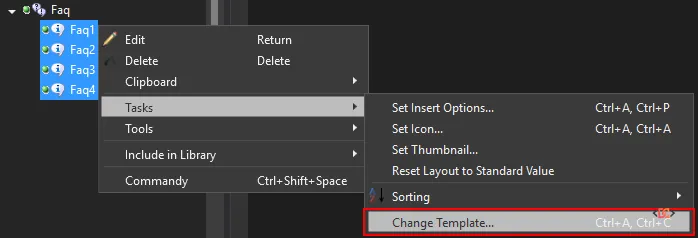
You can select multiple items in the Sitecore Rocks explorer, right-click, and navigate to Tasks -> Change Template.
Note: If your field names differ, combine this with the renaming technique mentioned above. Rename the fields on the source template first, perform the bulk change in Rocks, and then finalize your template structure.
4. Refactoring via Serialization (TDS or Unicorn)
If your project uses TDS (Team Development for Sitecore) or Unicorn, you can perform a "search and replace" on your serialized files. This is particularly useful for local development environments.
- Inheritance Trick: In Sitecore, make your existing template inherit from the new template. This ensures the items "see" the new fields immediately.
- Serialize: Sync your items to your disk using TDS or Unicorn.
- Global Replace: Use VS Code or another IDE to perform a bulk search and replace in the
.ymlor.itemfiles. You will want to replace the old Field IDs with the new Field IDs. - Sync Back: Push the changes back to Sitecore. The items will now have the data populated in the new fields.
- Cleanup: Remove the inheritance from the old template.
5. Direct SQL Updates (The "Nuclear" Option)
In extreme cases where you have millions of items and PowerShell is timing out, you can use SQL. Warning: Always back up your database before running manual SQL scripts and ensure you have a clear understanding of the Sitecore database schema.
You must update the FieldId in the VersionedFields, UnversionedFields, and SharedFields tables, and finally update the TemplateID in the Items table.
-- Update field references
UPDATE VersionedFields SET [FieldId] = 'NEW_FIELD_GUID' WHERE [FieldId] = 'OLD_FIELD_GUID';
UPDATE UnversionedFields SET [FieldId] = 'NEW_FIELD_GUID' WHERE [FieldId] = 'OLD_FIELD_GUID';
UPDATE SharedFields SET [FieldId] = 'NEW_FIELD_GUID' WHERE [FieldId] = 'OLD_FIELD_GUID';

-- Update item template reference
UPDATE Items SET [TemplateID] = 'NEW_TEMPLATE_GUID' WHERE [TemplateID] = 'OLD_TEMPLATE_GUID';
After running these scripts, you must restart the Sitecore application pool, clear the caches, and perform a full republish.
Frequently Asked Questions
Will changing a template affect the item's GUID?
No. Changing the template of an item updates its TemplateID property but the Item ID (GUID) remains exactly the same. This means internal links and references to that item will not break.
What happens to Standard Values during a template change?
When you change an item's template, it will stop inheriting values from the old template's Standard Values and start inheriting from the new template's Standard Values. If you have default values set there, they will apply to any fields that are empty on the item itself.
Can I change templates across different language versions?
Yes. The PowerShell methods and the SQL methods described above will handle all language versions. If you use the manual renaming technique in the Content Editor, Sitecore handles the versioned data automatically as long as the field names match.
Wrapping Up
Refactoring your Sitecore templates doesn't have to be a manual data-entry nightmare. For most scenarios, Sitecore PowerShell Extensions is the superior choice due to its balance of safety and automation. However, for quick fixes, the Field Renaming technique is a reliable fallback. Always remember to test your migration in a lower environment and take a fresh database backup before performing bulk template changes on production content.