Troubleshooting a SharePoint environment can often feel like searching for a needle in a haystack. When a user reports a cryptic 'Unexpected Error' or a specific Correlation ID, your primary destination is the Unified Logging Service (ULS) logs. These logs contain the granular details of every transaction occurring within your farm, but their sheer volume can be overwhelming.
Learning how to effectively read and filter SharePoint ULS logs is a critical skill for any administrator or developer. Whether you are dealing with a failing timer job, a broken web part, or authentication issues, having the right toolset can reduce your troubleshooting time from hours to minutes. In this guide, we will explore the most effective tools available for searching, filtering, and analyzing ULS logs.
1. The Industry Standard: Microsoft ULSViewer
When it comes to real-time log monitoring, ULSViewer is widely considered the gold standard. Originally developed internally by Microsoft engineers, it was later released to the public and remains the most popular choice for SharePoint practitioners.
ULSViewer allows you to open log files (.log) or connect to a live feed of the ULS data. One of its most powerful features is the ability to highlight specific rows based on severity (Critical, Error, Warning) or specific keywords. This visual feedback is invaluable when you are trying to spot a failing process in a stream of thousands of events.
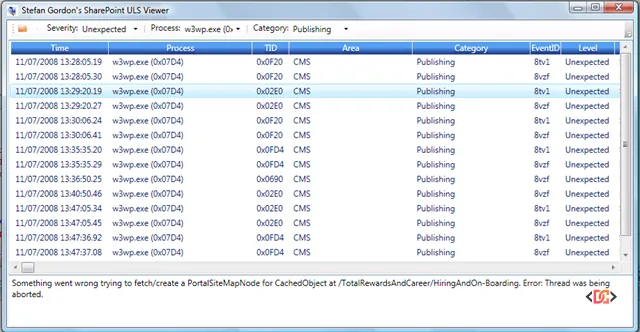
Key Features of ULSViewer:
- Real-time Tailing: Watch logs as they are written to the disk.
- Smart Filtering: Filter by Category, Process, Area, or Message using complex logic.
- Correlation Highlighting: Click on a Correlation ID to instantly see all related events across the log file.
- Multi-file Support: Open multiple log files simultaneously to correlate events across different timeframes.
2. Farm-Wide Analysis with PowerShell and Merge-SPLogFile
In a multi-server environment (Web Front Ends, Application Servers, etc.), ULS logs are scattered across the 14/15/16/LOGS folders of every individual server. Checking them one by one is inefficient. This is where the native PowerShell cmdlet Merge-SPLogFile becomes your best friend.
This cmdlet collects log entries from all servers in the farm and merges them into a single log file on the local machine. This is particularly useful when you have a Correlation ID but don't know which server handled the specific request.
# Example: Merging logs for a specific Correlation ID from the last hour
Merge-SPLogFile -Path "C:\Logs\MergedLog.log" -Correlation "7349199f-702a-40a2-9d3d-1234567890ab" -StartTime (Get-Date).AddHours(-1)
By using the -StartTime and -EndTime parameters, you can significantly reduce the size of the resulting file, making it much easier to open in a viewer like ULSViewer or even Notepad++.
3. Advanced Diagnostic Suites
If you need to go beyond simple log reading and want a bird's-eye view of your farm's health, you may require a more robust diagnostic suite.
SharePoint Diagnostics (SPDiag)
Part of the SharePoint Administration Toolkit, SPDiag is designed to compile not just ULS logs, but also IIS logs, Event logs, and performance counters. It provides a unified timeline view, allowing you to see if a spike in CPU usage coincided with a specific set of ULS errors. While it requires a bit more setup than a standalone viewer, it is the best tool for deep-dive root cause analysis.
SysKit Insights
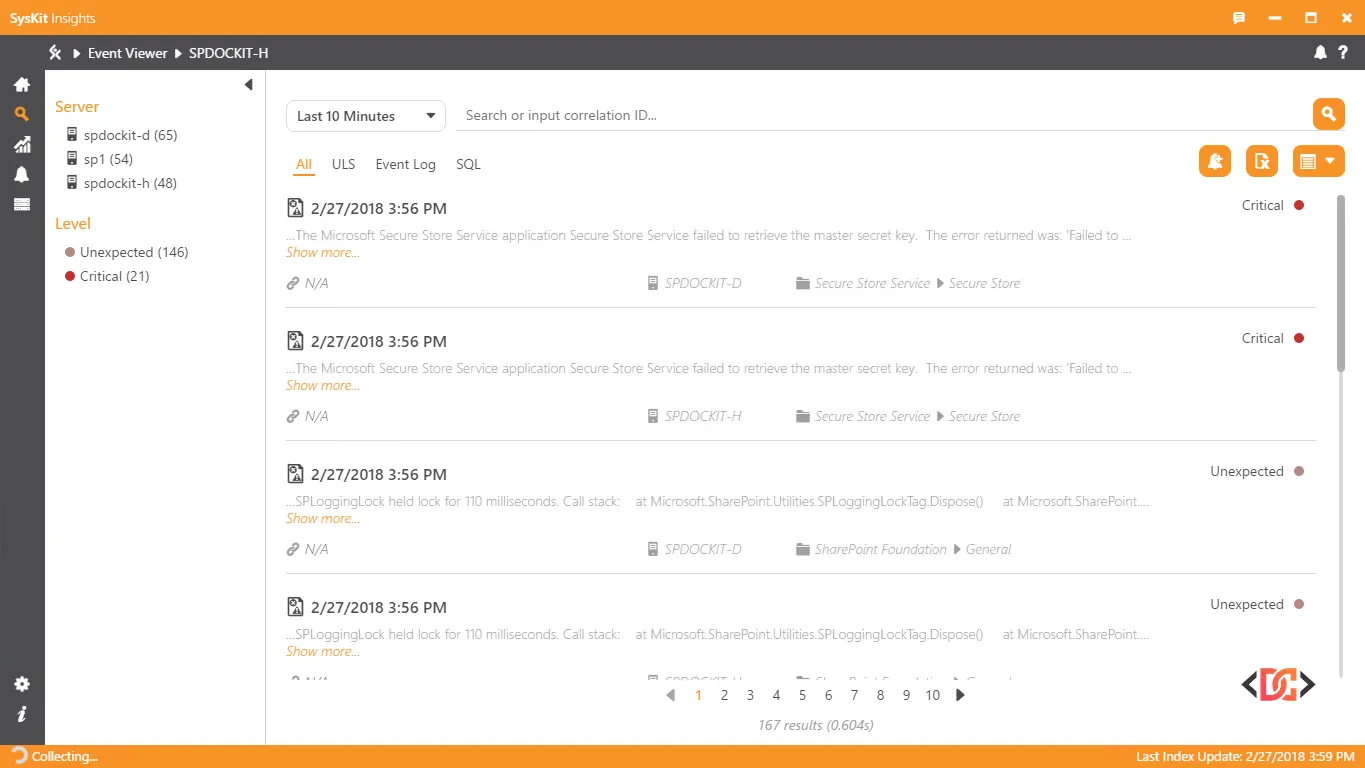
For enterprise-level monitoring, SysKit Insights offers a modern approach. Instead of just reading flat files, it acts as a search engine for your logs. It indexes ULS, SQL, and IIS logs across the entire farm, providing a centralized web interface for searching. It also features an alerting system that can notify you the moment a specific exception is logged, allowing for proactive maintenance.
4. Community and Open Source Alternatives
The SharePoint community has developed several specialized tools to address specific pain points in the logging process.
- SharePoint Log Viewer (MIT Licensed): A lightweight, open-source tool that allows you to view logs from the entire farm live. It is highly regarded for its clean interface and efficient filtering.
- SPTraceView: This tool is unique because it allows you to monitor multiple Web Front Ends (WFE) simultaneously in real-time. You install a 'receiver' on one machine, and it aggregates the live feeds from other servers. Note that this tool was primarily designed for older MOSS/SP2010 environments, so verify compatibility with modern versions.
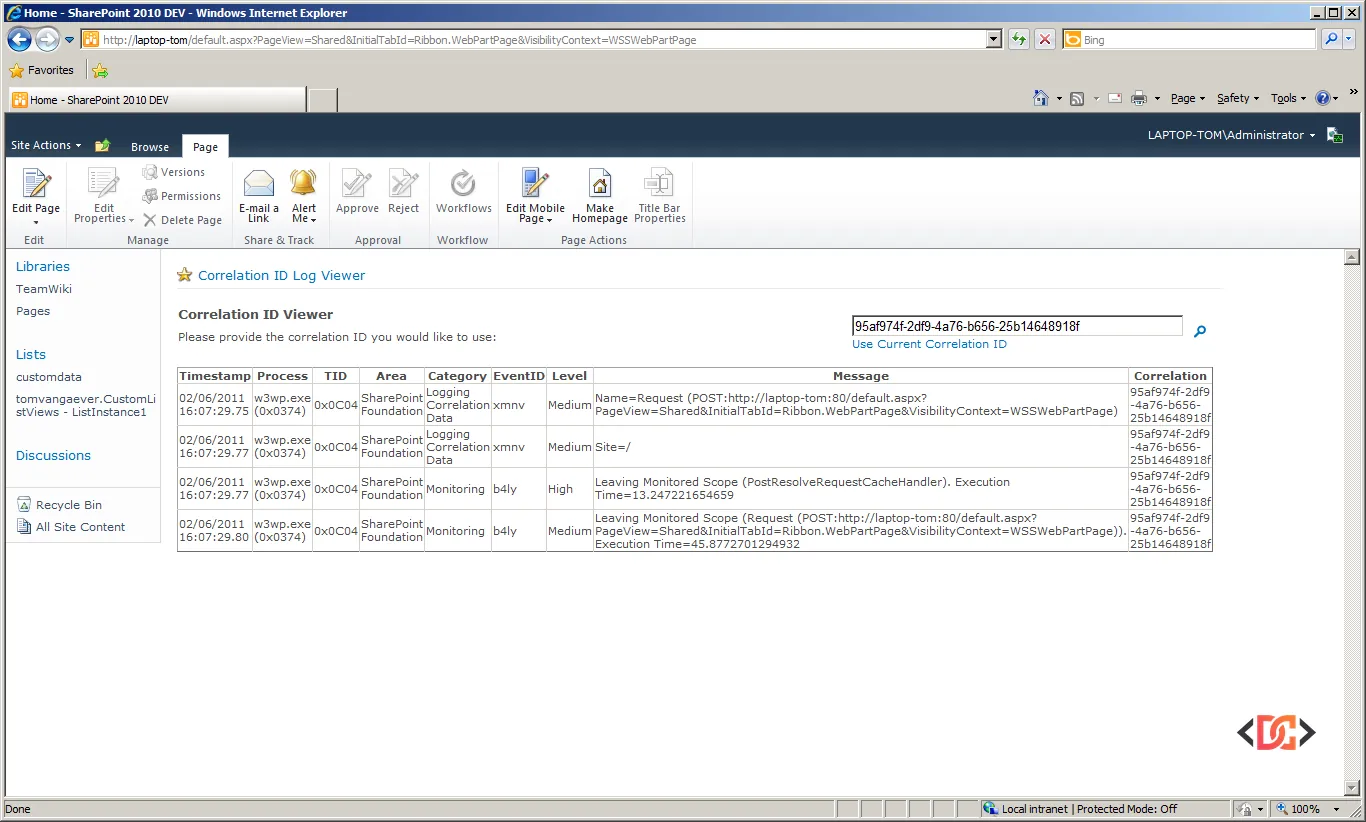
- SPCorrelationView Web Part: Sometimes you don't want to RDP into a server just to check a log. This web part allows developers to retrieve ULS information directly within the SharePoint browser interface by entering a Correlation ID.
- MasterLogViewer: A versatile tool available on GitHub that supports multiple log formats, including ULS. It is a great option if you prefer a highly customizable UI.
5. Utilizing Log Parser 2.2
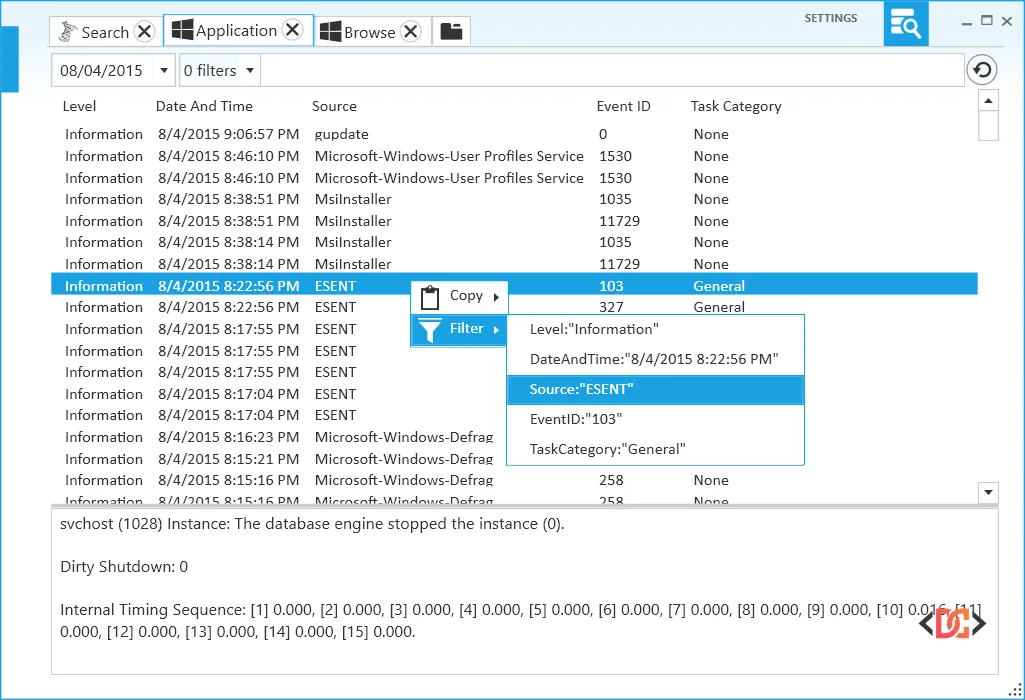
For those who prefer a query-based approach, Log Parser 2.2 is a powerful command-line utility from Microsoft. It treats log files like a database, allowing you to run SQL-like queries against them.
For example, you could run a query to count the number of 'High' severity errors per category over the last 24 hours. This is excellent for generating reports or identifying recurring patterns that might not be obvious when looking at individual log lines.
Frequently Asked Questions
What is a Correlation ID in SharePoint ULS logs?
A Correlation ID is a unique GUID (Globally Unique Identifier) assigned to every single request handled by SharePoint. When an error occurs, SharePoint displays this ID to the user. By searching for this ID in your ULS logs, you can see every single step the server took for that specific request, making it easy to identify exactly where the failure happened.
Where are the ULS logs stored by default?
By default, ULS logs are stored in the SharePoint Hive. For SharePoint 2016 and 2019, this is typically located at:
C:\Program Files\Common Files\microsoft shared\Web Server Extensions\16\LOGS.
You can change this location via Central Administration under Monitoring > Reporting > Configure Diagnostic Logging.
Can I use these tools for SharePoint Online?
No, ULS logs are only accessible for SharePoint On-Premises environments (2013, 2016, 2019, Subscription Edition). For SharePoint Online, you must rely on the Audit Logs in the Microsoft 365 Compliance Center or use the Get-PnPException and Get-PnPSiteHealth cmdlets for client-side troubleshooting.
Wrapping Up
Effective troubleshooting in SharePoint starts with the right tools. For quick, real-time debugging, ULSViewer remains the top recommendation. If you are managing a large farm and need to aggregate data, mastering the Merge-SPLogFile PowerShell cmdlet is essential. For teams looking for long-term monitoring and alerting, tools like SysKit Insights provide the necessary infrastructure to stay ahead of issues.
By integrating these tools into your workflow, you can move away from guesswork and start making data-driven decisions to keep your SharePoint environment healthy and performant.