Losing access to your Adobe Commerce or Magento 2 dashboard can bring your operations to a grinding halt. Whether you have forgotten your credentials or are locked out due to a redirect loop error, knowing how to reset your Magento 2 admin password is a critical skill for any store owner or developer.
In this guide, we will explore five distinct methods to regain access to your admin panel, ranging from the official Command Line Interface (CLI) to direct database manipulation. We will also touch upon common troubleshooting steps for when the login page itself fails to load properly.
Method 1: Using the Magento 2 CLI (Recommended)
The most secure and straightforward way to handle password issues is through the Magento Command Line Interface. If you have SSH access to your server, this is the preferred method because it ensures that Magento’s internal hashing and salting logic are handled correctly.
Creating a New Admin User
Sometimes, instead of resetting an existing password, it is easier to create a temporary "Super Admin" account to regain access and then manage other users from the UI.
Navigate to your Magento root directory and run the following command:
php bin/magento admin:user:create --admin-user="admin_temp" --admin-password="Password123!" --admin-email="[email protected]" --admin-firstname="Admin" --admin-lastname="User"
Note on Syntax: Ensure you do not include a leading slash before bin/magento if you are already in the root folder. If your shell environment is sensitive to special characters, ensure your password is wrapped in double quotes.
Method 2: Resetting via n98-magerun2
For developers who manage multiple Magento installations, n98-magerun2 is an indispensable tool. It simplifies many complex tasks, including user management.
1. Install n98-magerun2
If you don't have it yet, you can download the phar file directly to your project root:
wget https://files.magerun.net/n98-magerun2.phar
chmod +x ./n98-magerun2.phar
2. Identify the Admin Username
If you aren't sure what the exact username is, run:
php n98-magerun2.phar admin:user:list
This will output a table similar to this:
| id | username | status | |
|---|---|---|---|
| 1 | admin | [email protected] | active |
3. Change the Password
Once you have the username, execute the following command and follow the interactive prompts:
php n98-magerun2.phar admin:user:change-password
Method 3: Direct Database Update (SQL)
If you do not have SSH access but have access to phpMyAdmin or a MySQL client, you can update the admin_user table directly. However, Magento 2 does not use simple MD5 hashing; it uses SHA256 with a salt.
Option A: The Salted SHA256 Approach
This query generates a random salt and applies it correctly to the password string. Replace MyNewPassword with your desired password:
SET @salt = MD5(UNIX_TIMESTAMP());
UPDATE admin_user
SET password = CONCAT(SHA2(CONCAT(@salt, 'MyNewPassword'), 256), ':', @salt, ':1')
WHERE username = 'admin';
Option B: Using the Crypt Key from env.php
Since Magento 2.3, security has tightened. You can manually construct a hash if you know your site's unique crypt key found in app/etc/env.php:
UPDATE admin_user
SET password = CONCAT(SHA2('[salt]NewPassword', 256), ':[salt]:1')
WHERE username = 'admin';
Method 4: Generating a Hash via PHP Code
If you want to ensure the hash is perfectly compatible with your specific Magento version's encryption logic, you can temporarily use the Encryptor class via a script or by modifying pub/index.php.
Add this snippet to your code to output a valid hash for "yourpass":
echo \Magento\Framework\App\ObjectManager::getInstance()
    ->get("\Magento\Framework\Encryption\Encryptor")
    ->getHash("yourpass");

Copy the resulting string from your browser and use it in a simple SQL update:
UPDATE admin_user SET password = '<your_generated_hash>' WHERE username='admin';
Important: Remove this code from your pub/index.php immediately after use to prevent security vulnerabilities.
Method 5: The "Forgot Password" Web Interface
If your store's SMTP settings are correctly configured and your server can send outgoing emails, the easiest method is the built-in recovery tool.
- Navigate to your admin login URL.
- Click on Forgot Password?.
- Enter the email address associated with the admin account.
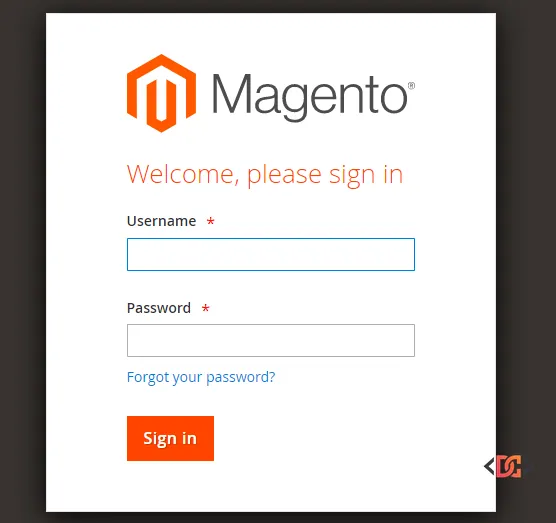
If you do not receive an email, it likely means your server's mail transfer agent (MTA) is not configured, and you should revert to the CLI or SQL methods mentioned above.
Troubleshooting the "Redirect Loop" Error
After resetting your password, you might encounter a "This webpage has a redirect loop" error when trying to log in. This is rarely a password issue and usually relates to cookie settings or secure URL configurations.
- Clear Browser Cookies: Magento stores session information in cookies that can become stale.
- Check Cookie Domain: Ensure the
web/cookie/cookie_domainin thecore_config_datatable matches your actual domain. - Verify HTTPS: If you recently moved to SSL, ensure
web/secure/use_in_adminhtmlis set to1in your configuration.
Frequently Asked Questions
Can I reset the Magento 2 password using MD5?
No. Unlike Magento 1, Magento 2 uses more robust SHA256 hashing with salts. Simply entering an MD5 hash into the database will not allow you to log in.
What should I do if the admin URL is also forgotten?
You can find your admin URL by running php bin/magento info:adminuri in your terminal. This will display the exact path (e.g., admin_1abcde) defined in your app/etc/env.php file.
Why does my new admin user still show "Access Denied"?
This usually happens if the user was not assigned to a User Role. When using the CLI admin:user:create command, Magento automatically assigns the "Administrators" role, but if you manually created the user in the database, you must also populate the authorization_role and authorization_rule tables.
Wrapping Up
Regaining access to your Magento 2 admin panel is straightforward once you know which tool to use. For most developers, the CLI command is the fastest and safest route. If you are in a shared hosting environment without SSH, the SQL method with SHA256 salting is your best bet.
Always remember to clear your Magento cache (php bin/magento cache:flush) after making direct database changes to ensure the system recognizes the new credentials immediately.