Authenticating with the SharePoint Online REST API using Postman can be a frustrating experience for developers. You might find that while you can access the API endpoint perfectly fine in your browser, attempting a simple GET request in Postman results in an immediate "Access Denied" or a cryptic AudienceUriValidationFailedException. This happens because the browser leverages your active session cookies, whereas Postman requires a formal authentication handshake.
In this guide, you will learn the most effective methods to authenticate Postman with SharePoint Online, ranging from modern Microsoft Entra ID (formerly Azure AD) registrations to the legacy SharePoint App-Only model. By the end of this tutorial, you will be able to query your SharePoint lists and libraries with confidence.
Method 1: Authenticating via Microsoft Entra ID (Azure AD)
The most secure and modern way to interact with SharePoint Online is through an App Registration in the Microsoft Entra ID portal. This allows you to define specific permissions and use the OAuth 2.0 flow.
Step 1: Register the Application
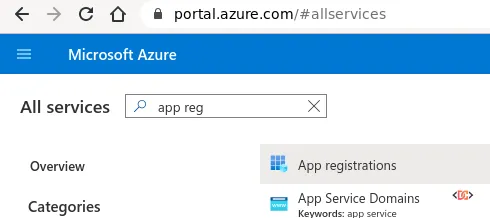
- Log in to the Azure Portal using your Microsoft 365 Tenant admin credentials.
- Search for and select App registrations.
- Click New registration.
- Give it a name like
SPO-Postman-Testing. - Set the Redirect URI to:
https://www.getpostman.com/oauth2/callback(orhttps://oauth.pstmn.io/v1/browser-callbackfor newer versions of Postman).
Step 2: Configure Permissions and Secrets
- Navigate to API permissions > Add a permission.
- Select SharePoint and choose the permissions your testing requires (e.g.,
Sites.Read.AllorSites.FullControl.All). - Ensure you click Grant admin consent for your tenant.
- Go to Certificates & secrets and create a New client secret. Copy the Value immediately; you will not be able to see it again.
Step 3: Configure Postman
In Postman, create a new request and go to the Authorization tab. Select OAuth 2.0 and fill in the following details:
- Grant Type: Authorization Code
- Callback URL:
https://www.getpostman.com/oauth2/callback - Auth URL:
https://login.microsoftonline.com/common/oauth2/authorize?resource=https://yourtenant.sharepoint.com - Access Token URL:
https://login.microsoftonline.com/common/oauth2/token - Client ID: Your Application (client) ID from Azure.
- Client Secret: The secret value you generated earlier.
Method 2: The SharePoint App-Only Model (Legacy)
If you do not have access to the Azure Portal, you can use the legacy SharePoint-only registration method. This is often useful for quick internal tools or when working strictly within the SharePoint ecosystem.
Step 1: Register the App in SharePoint
Navigate to the following URL on your site collection:
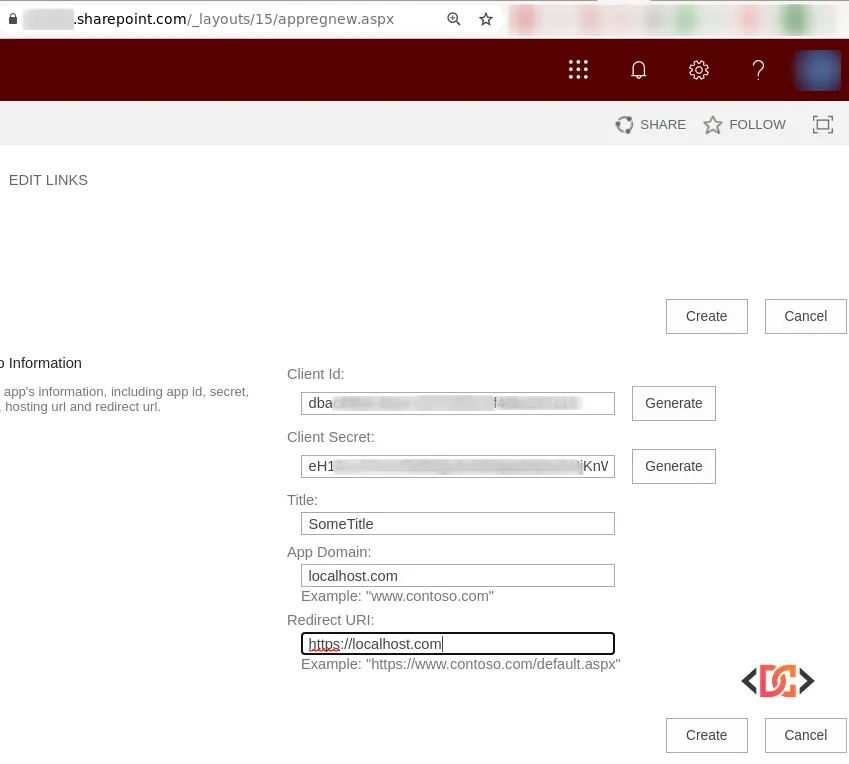
https://yourtenant.sharepoint.com/_layouts/15/appregnew.aspx
Click Generate for both Client Id and Client Secret. Use localhost.com for the App Domain and https://localhost.com/default.aspx for the Redirect URI.
Step 2: Grant Permissions
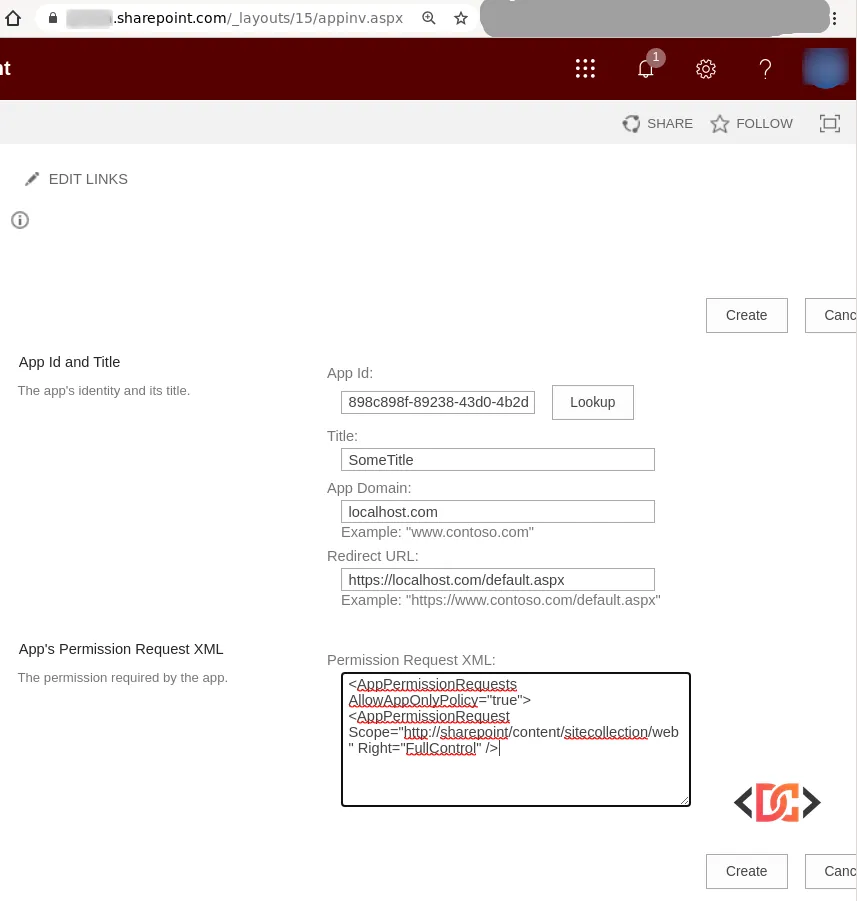
Navigate to:
https://yourtenant.sharepoint.com/_layouts/15/appinv.aspx
Paste your Client Id and click Lookup. In the Permission Request XML box, paste the following:
<AppPermissionRequests AllowAppOnlyPolicy="true">
  <AppPermissionRequest Scope="http://sharepoint/content/sitecollection/web" Right="FullControl" />
</AppPermissionRequests>
Step 3: Retrieve the Tenant ID and Access Token
To get the Access Token, you first need your Tenant ID. Send a GET request in Postman to https://yourtenant.sharepoint.com/_vti_bin/client.svc/ with an empty Authorization: Bearer header. The response will fail, but the Headers tab in the response will contain a WWW-Authenticate key. The realm value is your Tenant ID.
Now, create a POST request to https://accounts.accesscontrol.windows.net/YOUR_TENANT_ID/tokens/OAuth/2 with the following body (x-www-form-urlencoded):
- grant_type:
client_credentials - client_id:
YOUR_CLIENT_ID@YOUR_TENANT_ID - client_secret:
YOUR_CLIENT_SECRET - resource:
00000003-0000-0ff1-ce00-000000000000/yourtenant.sharepoint.com@YOUR_TENANT_ID
Advanced: Using Certificates for Authentication
In some high-security environments, a Client Secret is not enough, and you may need to use a certificate. You can generate a self-signed certificate using PowerShell to update your Azure App Manifest:
$cert = New-SelfSignedCertificate -Subject "CN=POSTMAN-TEST" -CertStoreLocation "Cert:\CurrentUser\My" -KeyExportPolicy Exportable -KeySpec Signature
$bin = $cert.RawData
$base64Value = [System.Convert]::ToBase64String($bin)
$bin = $cert.GetCertHash()
$base64thumbprint = [System.Convert]::ToBase64String($bin)
$keyid = [System.Guid]::NewGuid().ToString()
$jsonobj = @{customKeyIdentifier=$base64thumbprint;keyId=$keyId;type="AsymmetricX509Cert";usage="Verify";value=$base64Value}
$keyCredentials = ConvertTo-Json @($jsonobj)
$keyCredentials
You would then paste the output into the keyCredentials section of your App Registration's Manifest in the Azure Portal.
The Quickest Method: Postman Interceptor
If you are doing rapid debugging and don't want to deal with App Registrations, the Postman Interceptor is a lifesaver. It allows Postman to capture and use the browser cookies from your active SharePoint session.
- Install the Postman Interceptor extension in Chrome.
- Enable the Interceptor in the Postman desktop app.
- Log in to SharePoint in your browser.
- Postman will now automatically include your session cookies in its requests, bypassing the need for complex OAuth setup for temporary testing.

Frequently Asked Questions
Why do I get the 'AudienceUriValidationFailedException' error?
This usually happens when the resource parameter in your OAuth request doesn't match the SharePoint site URL or the registered App ID. Ensure your resource string includes the correct tenant domain and the SharePoint service principal ID (00000003-0000-0ff1-ce00-000000000000).
Can I use Microsoft Graph instead of the SharePoint REST API?
Yes! Microsoft Graph is the recommended path for new applications. If you use Graph, you can utilize the official Microsoft Graph Postman Collection, which simplifies the authentication process significantly.
Which authentication method is the most secure?
Using Microsoft Entra ID with Certificate-based authentication is the most secure method. Client secrets are easier to set up but require careful management to avoid exposure.
Wrapping Up
Authenticating Postman with SharePoint Online requires a solid understanding of OAuth 2.0 and the various identity providers available in the Microsoft 365 ecosystem. Whether you choose the modern Entra ID approach, the legacy App-Only principal, or the quick Interceptor method, you now have the tools to debug and develop against SharePoint APIs effectively. Always remember to grant the least privilege necessary for your testing to maintain a secure environment.