Keeping your CiviCRM installation up to date is one of the most important tasks for any administrator or developer. Whether you are troubleshooting a bug, checking for security vulnerabilities, or planning a major upgrade, you need to know exactly which version you are running.
In older versions of CiviCRM, the version number was often displayed prominently in the footer of every page. However, as the platform has evolved—particularly since the release of version 4.7—this information has been moved to keep the interface cleaner and more secure. If you find yourself wondering, "What version of CiviCRM am I actually running?" this guide will walk you through four different methods to find that answer across the UI, the server, and the database.
Method 1: Using the CiviCRM Administration Console
For most site administrators, the easiest and most direct way to check your version is through the CiviCRM user interface. While it may no longer appear in the footer of your WordPress or Drupal dashboard, it is recorded in your system health logs.
To find it, navigate to: Administer > Administration Console > System Status
Once you are on the System Status page, look for a section titled CiviCRM Up-to-Date. Your current version number will be listed right there. This page is also incredibly useful for identifying other potential issues, such as directory permission errors or cron job failures.
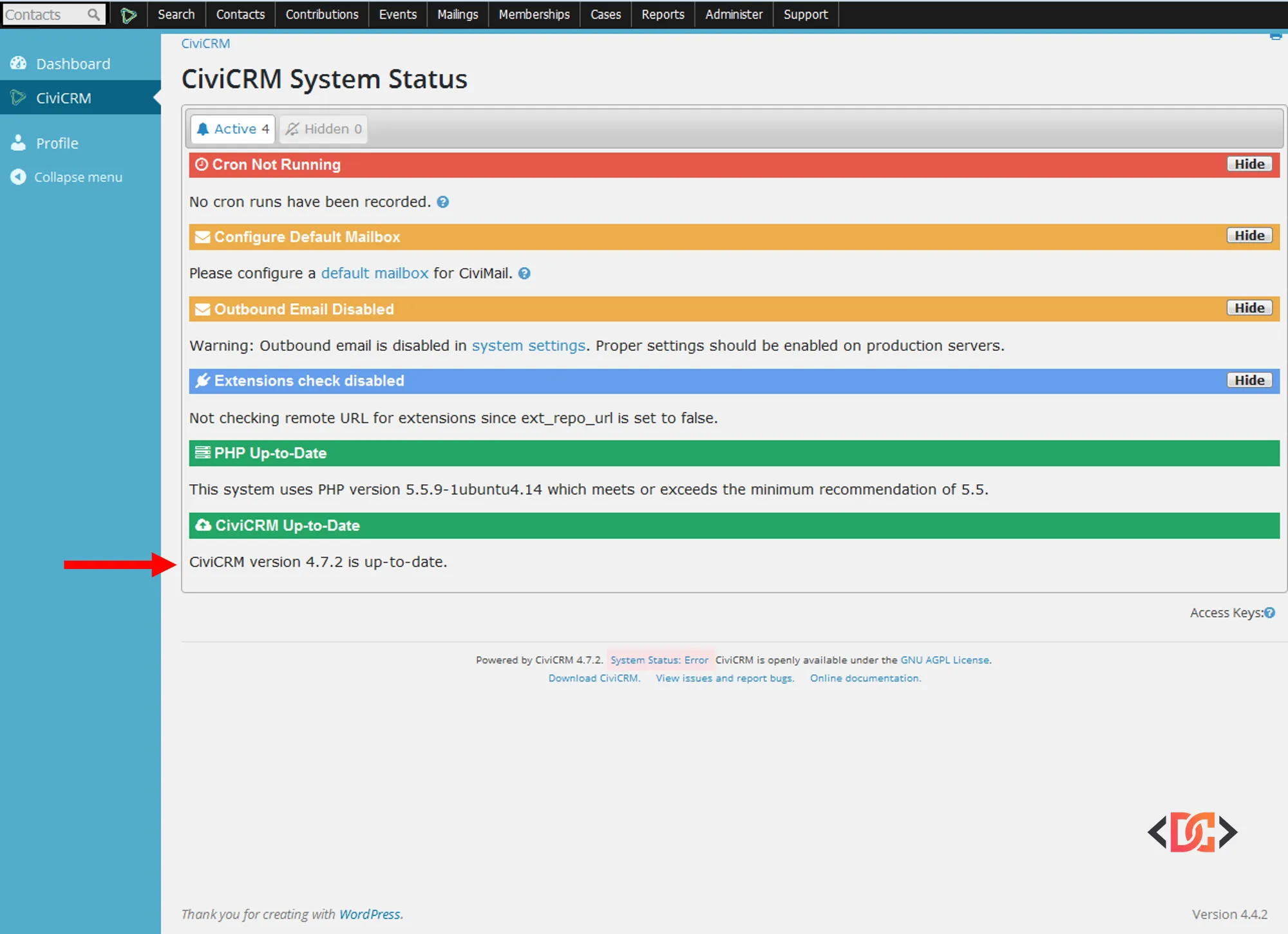
If you are using a demo site or a specific CMS integration, you might still see the version in the footer, but the System Status page remains the "source of truth" for the application.
Method 2: Checking the File System
There are times when you might not have access to the CiviCRM dashboard—perhaps during a site migration or when troubleshooting a white screen of death (WSOD). In these cases, you can check the version directly on your server via FTP, SSH, or your hosting file manager.
CiviCRM stores its version information in a specific PHP file. Navigate to your CiviCRM root directory (the location varies depending on your CMS, but it is usually within the plugins or modules folder) and locate this file:
civicrm/civicrm-version.php
When you open this file, you will see a PHP array that defines the version string. This is a foolproof way to identify the version even if the database is inaccessible or the web interface is down.
Method 3: Querying the Database Directly
If you are a database administrator or prefer working in tools like phpMyAdmin or Sequel Ace, you can pull the version number directly from the CiviCRM database tables. This information is stored in the civicrm_domain table.
You can run the following SQL query to retrieve the version:
SELECT version FROM civicrm_domain;
This will return the version number currently registered in your database. This is particularly helpful if you have recently uploaded new files but haven't yet run the database upgrade script, as it helps you identify the "schema version" versus the "file version."
Method 4: Using the CiviCRM API
For developers and power users, the CiviCRM API provides a programmatic way to check the version. This is the preferred method when writing custom extensions or scripts that need to verify compatibility before executing logic.
Using System.check
From CiviCRM 4.7 onward, you can use the System.check API. This is the same logic that powers the System Status page mentioned in Method 1.
$result = civicrm_api3('System', 'check', array(
  'name' => "checkVersion",
));
The resulting array will look something like this:
Array
(
    [is_error] => 0
    [version] => 3
    [count] => 1
    [id] => 5
    [values] => Array
        (
            [5] => Array
                (
                    [name] => checkVersion
                    [message] => CiviCRM version 4.7.2 is up-to-date.
                    [title] => CiviCRM Up-to-Date
                    [severity] => info
                    [severity_id] => 1
                    [is_visible] => 1
                    [icon] => fa-cloud-upload
                    [id] => 5
                )
        )
)
Using System.get
Alternatively, you can use the more concise System.get call, which returns the version and the User Framework (CMS) type:
$result = civicrm_api3('System', 'get', array());
This will return a simplified array:
Array
(
    [is_error] => 0
    [version] => 3
    [count] => 1
    [id] => 0
    [values] => Array
        (
            [0] => Array
                (
                    [version] => 5.78.0
                    [uf] => WordPress
                )
        )
)
Why Knowing Your Version is Critical
CiviCRM releases updates frequently. These updates generally fall into three categories: 1. Security Releases: Critical patches that protect your donor and member data. 2. Bug Fixes: Improvements to existing features that may have been behaving unexpectedly. 3. New Features: Major functionality leaps that can help your organization grow.
If you are running a version that is several years old, you may find that modern extensions or payment processors (like Stripe or PayPal) no longer function correctly. By knowing your version, you can better navigate the CiviCRM release notes and plan your maintenance windows effectively.
Frequently Asked Questions
Why did the version number disappear from my footer?
Starting with version 4.7, the developers opted for a cleaner user interface. Additionally, hiding the version number from public-facing or low-permission users is a minor security best practice (security through obscurity), as it makes it slightly harder for automated bots to identify potentially vulnerable old versions of your software.
How do I check the version using the command line?
If you have cv (the CiviCRM command-line tool) installed, you can simply run cv vars:show or cv api System.get. This is the fastest method for sysadmins managing multiple sites.
What if my file version and database version don't match?
This usually happens during an upgrade process. If your civicrm-version.php shows a newer version than your civicrm_domain table, it means you have uploaded the new code but haven't yet run the upgrade script (usually found at example.org/civicrm/upgrade?reset=1). You should complete the upgrade immediately to prevent data corruption.
Wrapping Up
Whether you prefer the point-and-click ease of the Administration Console or the technical precision of an API call, finding your CiviCRM version is a straightforward process. Check your version regularly, stay informed about the latest releases, and ensure your CRM remains a secure, high-performing asset for your organization. If you've discovered you're running an outdated version, now is the perfect time to review the documentation and plan your next upgrade!