
Setting up automated workflows is one of the most powerful features of CiviCRM. When a new supporter joins your mailing list via a profile or a subscription link, you expect CiviCRM to handle the heavy lifting: sending the confirmation email, managing the double opt-in process, and delivering a warm welcome message. However, it can be incredibly frustrating when these automatic emails fail to fire, leaving your contacts in a perpetual 'Pending' state.
In this guide, you will learn how to troubleshoot and fix issues where CiviCRM group subscription emails are not being sent. We will cover the core component settings, profile configurations, and specific considerations for users utilizing the Drupal Webform CiviCRM integration.
Understanding the Double Opt-In Workflow
Before diving into the fixes, it is important to understand how CiviCRM handles group subscriptions. By default, CiviCRM uses a double opt-in process to ensure list quality and compliance with anti-spam regulations.
When a user joins a group through a profile, the following sequence should occur: 1. The contact is added to the group with a status of Pending. 2. CiviCRM automatically sends a Subscription Confirmation Request email. 3. The user clicks the confirmation link in that email. 4. Their status is updated to Added, and a Welcome Message is triggered.
If your users are getting stuck at the 'Pending' stage without receiving an email, the issue usually lies in a global configuration setting rather than the profile itself.
Step 1: Verify CiviMail Component Settings
The most common reason for automated subscription emails failing to send is that the functionality has been disabled at the component level. Even if your SMTP settings are correct and individual emails are working fine, these specific automated responses are governed by global toggles.
To check these settings, navigate to: Administer > CiviMail > CiviMail Component Settings
In this screen, you must ensure that the following options are configured correctly:
- Enable Double Opt-in for Profile Group Subscriptions: This must be checked if you want CiviCRM to send that initial confirmation request.
- Enable Welcome Message for Profile Group Subscriptions: This must be checked if you want a follow-up email sent once they confirm.
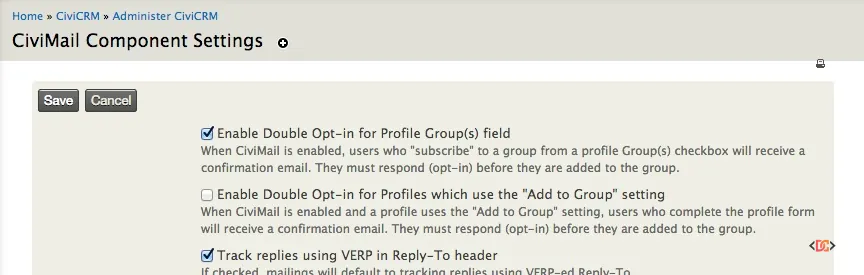
If these boxes are unchecked, CiviCRM will simply add the contact to the group (or set them to pending) without ever triggering the mailer engine. Ensure you save the settings after making changes and test the signup process again with a fresh email address.
Step 2: Review Profile Advanced Settings
If your global settings are correct but a specific profile is still not triggering emails, you should inspect the profile's configuration. Profiles act as the bridge between your website visitors and your CiviCRM database.
Go to Administer > Customize Data and Screens > Profiles and find the profile in question. Click on Settings and expand the Advanced Settings section.
Key areas to check include: 1. Add Contacts to Group: Ensure the correct group (e.g., "Volunteers" or "Newsletter") is selected. 2. Redirect URL: Ensure the profile isn't crashing upon submission due to an invalid redirect, which might interrupt the post-process hooks that send mail. 3. From Address: Ensure that the system has a valid "From" email address authorized to send mail. If CiviCRM tries to send an automated email from an unconfigured domain, your mail server or service (like SparkPost or AWS SES) may reject it silently.
Step 3: Troubleshooting Drupal Webform CiviCRM Integrations
Many CiviCRM administrators prefer using Drupal Webforms for complex sign-up flows. If you are using the webform_civicrm module, it is important to note that the module can sometimes override or bypass standard CiviCRM profile behavior.
If your emails aren't sending from a Webform, check the CiviCRM tab within your specific Webform: 1. Navigate to the Webform in Drupal. 2. Click on the CiviCRM tab. 3. Look for the Groups section for the relevant contact. 4. Check the Advanced Settings within the Webform's CiviCRM integration.
There is a specific setting for the Opt-in behavior here. If the webform is set to simply 'Add' the contact to the group without triggering the CiviCRM contribution/profile logic, the automated emails may be bypassed entirely. Ensure the settings here align with your desire for a double opt-in workflow.
Step 4: Check System Workflow Templates
In rare cases, the emails might be "sending" but are empty or failing because the templates themselves have been corrupted or improperly edited.
Navigate to Administer > Communications > Message Templates and click on the System Workflow Templates tab. Look for: * Mailing List Subscription Confirmation * Mailing List Subscription Welcome
Ensure these templates contain the necessary tokens, specifically the {subscribe.url} token for confirmation. If this token is missing, the user will have no way to confirm their subscription, and the process will stall.
Frequently Asked Questions
Why are my contacts staying in 'Pending' status?
This is almost always because the user has not clicked the link in the confirmation email. If they claim they never received the email, check your CiviMail Component Settings as described above, and verify your site's Cron job is running correctly. While these specific emails are usually triggered immediately, a failing Cron can sometimes interfere with the broader mailing subsystem.
Can I bypass double opt-in for certain groups?
Yes. If you disable the "Double Opt-in" setting in the CiviMail Component Settings, contacts will be added directly to the group with the 'Added' status. However, be aware that this may impact your email deliverability and compliance with privacy laws like GDPR or CASL.
Does CiviCRM send a confirmation for every group if a user joins multiple at once?
Yes, by default, if a user selects three different groups on a single profile, CiviCRM will send three separate confirmation emails. This can be overwhelming for users. To avoid this, consider using a single "Master" group for signups and then using CiviCRM's 'Group Nesting' or 'Smart Groups' to segment them internally.
Key Takeaways for Success
Fixing automated group subscription emails usually comes down to three main areas: 1. Global Toggles: Ensure Double Opt-in and Welcome Messages are enabled in the CiviMail Component Settings. 2. Authorized Senders: Confirm that your "From" address is valid and matches your sending domain's SPF/DKIM records. 3. Integration Specifics: If using Drupal Webforms, check the module-specific advanced settings to ensure they aren't bypassing the CiviCRM mail trigger.
By following these steps, you can ensure a professional and seamless onboarding experience for your new supporters, keeping your mailing lists healthy and your engagement high.